Every engineer I've worked with over the past fifteen years — as a Technical Manager and team lead — has a LinkedIn profile. Very few have a personal website. That gap is an opportunity, and it's smaller than most people think to close.
Why a personal website actually matters
You own the narrative
LinkedIn, GitHub, and job boards show a version of you shaped by their layout and their algorithm. A personal site is the one place where you control the story: which projects lead, which achievements get emphasized, how your skills are grouped. Nobody's feed algorithm decides whether a recruiter sees your best work first.
It's the first search result that's actually you
Search your own name right now. If a personal site with a clean title and description isn't in the first few results, you're ceding that space to whoever else shares your name — or to nothing at all. A site with your name as the domain and consistent metadata tends to rank for exactly the query that matters most: your name plus your role.
It proves the skill, not just the résumé line
This matters most if you work anywhere near infrastructure. Listing "AWS" as a skill on a résumé is cheap. A site that's actually running on S3, CloudFront, and Route 53 — with a real TLS certificate and a CDN in front of it — is a small, verifiable proof of work. Anyone technical who checks your DNS or your response headers sees the architecture decisions you made, not just the words you wrote about them.
It's a durable place to write
A blog post on your own domain doesn't disappear when a platform changes its algorithm or shuts down a feature. It compounds — old posts keep getting found in search long after you wrote them, which is exactly what's happening with this blog's first post.
How to host one on AWS, without overpaying or overbuilding
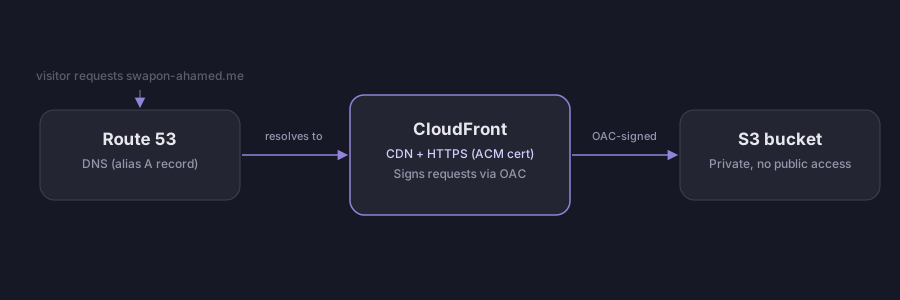
You don't need a server, a container, or a monthly hosting bill to run a personal site well. This site runs on the same architecture I'd recommend to anyone: a static site (plain HTML/CSS, no build step required) served from a private S3 bucket behind CloudFront, with a free TLS certificate from ACM and DNS in Route 53. It costs pennies a month at personal-site traffic levels, and it's the same pattern serious companies use for static assets at scale.
The architecture in one line
Route 53 (your domain) points to CloudFront (CDN + HTTPS), which fetches from a private S3 bucket using Origin Access Control — so the bucket itself is never publicly reachable, only CloudFront can read it.
The steps, at a glance
- Register your domain and create a hosted zone in Route 53 (or transfer DNS there if you registered elsewhere).
-
Create a private S3 bucket named
after your domain and upload your site files —
index.htmlat the bucket root. No "static website hosting" toggle needed; it stays private. -
Request a free TLS certificate in ACM,
specifically in the
us-east-1region — CloudFront only accepts certificates issued there, regardless of where your bucket lives. Validate it via a DNS record in Route 53. - Create an Origin Access Control (OAC) in CloudFront — this is what lets a private bucket stay private while CloudFront still serves it.
- Create the CloudFront distribution, pointing it at your bucket's S3 REST endpoint (not the website endpoint), attach the OAC, attach your ACM certificate, and set your domain as the alternate domain name (CNAME).
- Apply the bucket policy CloudFront gives you, which restricts read access to that specific distribution only.
-
Point Route 53 at CloudFront using
an alias A record (not a plain CNAME) — this is what
lets the bare domain, not just a
wwwsubdomain, resolve correctly.
Every one of those steps — including the exact CLI commands and the mistakes that trip people up most (certificate region, origin type mismatches, alias ordering) — is the same runbook I use to deploy this site. If you want the fully detailed, copy-pasteable version, treat this post as the map and work through it slowly the first time; the second deploy takes minutes.
Deploying updates afterward
Once it's live, shipping a change is two commands: sync your files to the bucket, then invalidate the CloudFront cache so visitors don't wait for the old version to expire.
aws s3 sync ./public s3://your-bucket-name --delete
aws cloudfront create-invalidation --distribution-id YOUR_DIST_ID --paths "/*"If you want the deeper "why" behind every one of these AWS decisions — not just the click-path — the AWS Certified Solutions Architect study guide is the single resource I'd point a backend engineer toward before any video course; it's the same body of knowledge behind the architecture in this post.
Check price on Amazon →The honest tradeoff
A static site on S3 and CloudFront can't run server-side code, so it's the wrong choice for anything needing logins, databases, or dynamic rendering. But for a résumé, a portfolio, or a blog — exactly the kind of site most people actually need — that limitation doesn't cost you anything, and the simplicity is the whole point: fewer moving parts, nothing to patch, nothing that goes down because a server process crashed.